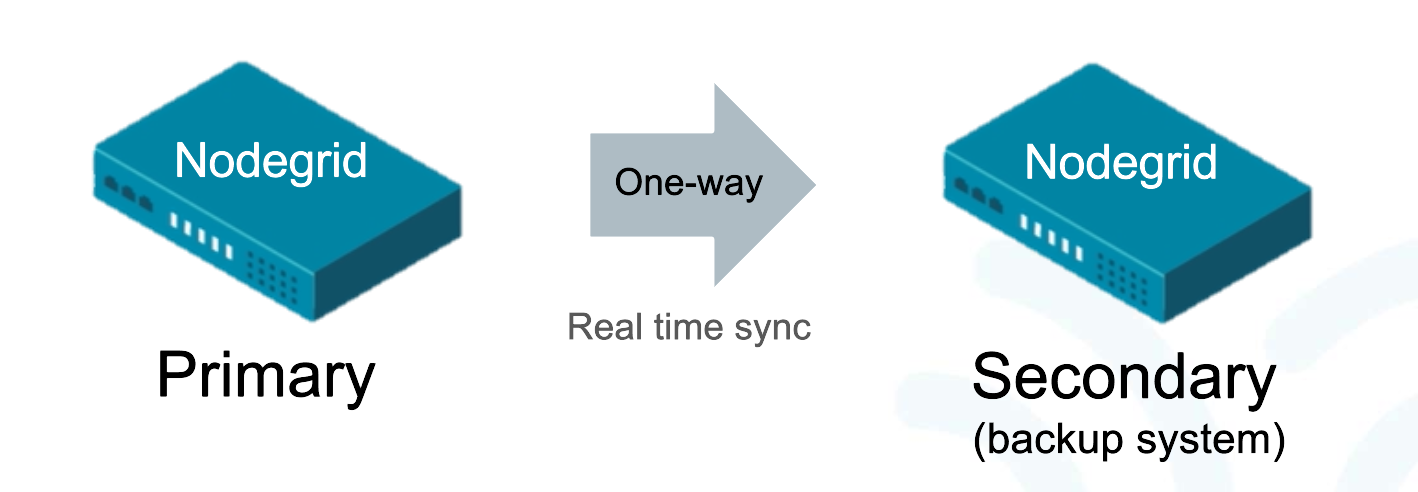
High Availability is a feature that makes it possible to have two synchronized Nodegrids, the changes done to the Primary Nodegrid will reflect on the Secondary Nodegrid. If the Primary Nodegrid is unavailable, the Secondary Nodegrid enables the user to be able to access the devices and resources.
The configuration is unilateral, the configurations done on the Primary Nodegrid are sent to the Secondary Nodegrid only.
Alert
High Availability is only enabled with a proper license.
After an OS upgrade, a Full Sync is required.
Setup High Availability
Add a License for High Availability
To add a license for High Availability, log into the Primary and sign in as an Admin user
Log into Nodegrid as an Admin user
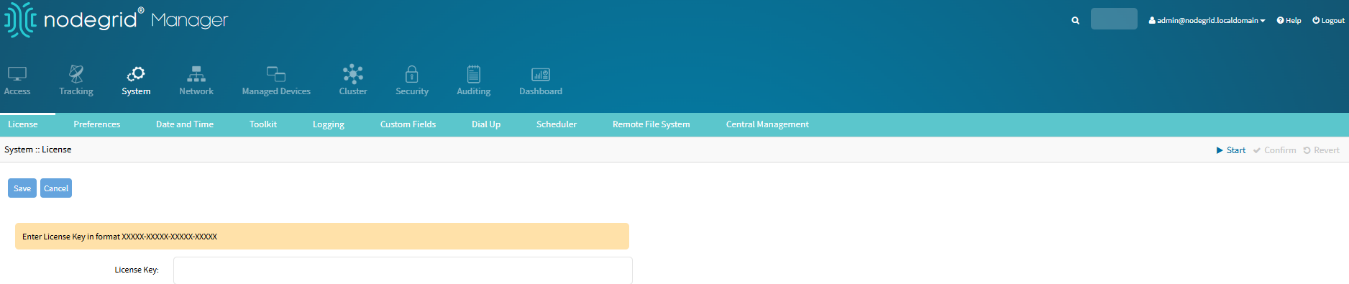
Go to the SYSTEM::LICENSE page
Click on Add
Enter the License Key and click Save
License Key field.
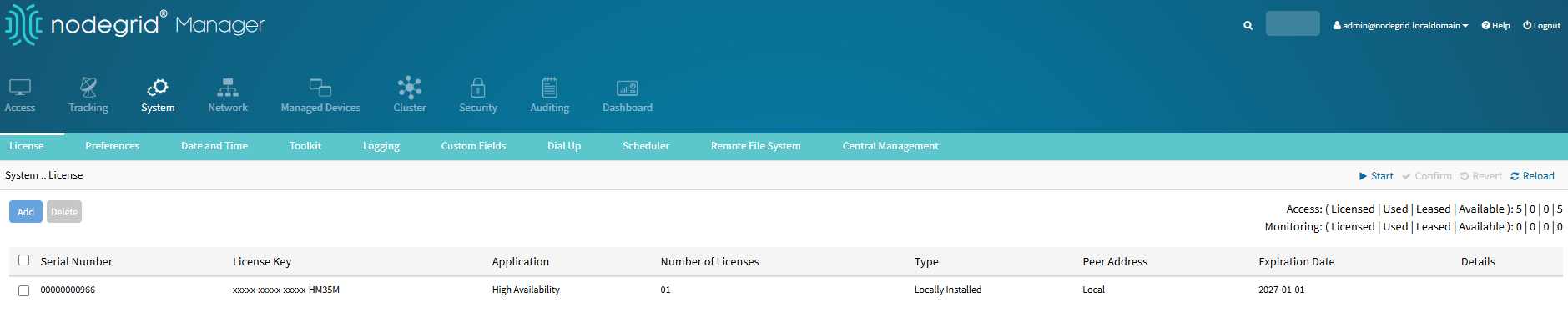
High Availability license is installed.
High Availability is available after the next login.
Note
High Availability will be available after the next login under the SYSTEM::HIGH AVAILABILITY page.
Enable High Availability
Log into Nodegrid as an Admin user
Go to the SYSTEM::HIGH AVAILABILITY page
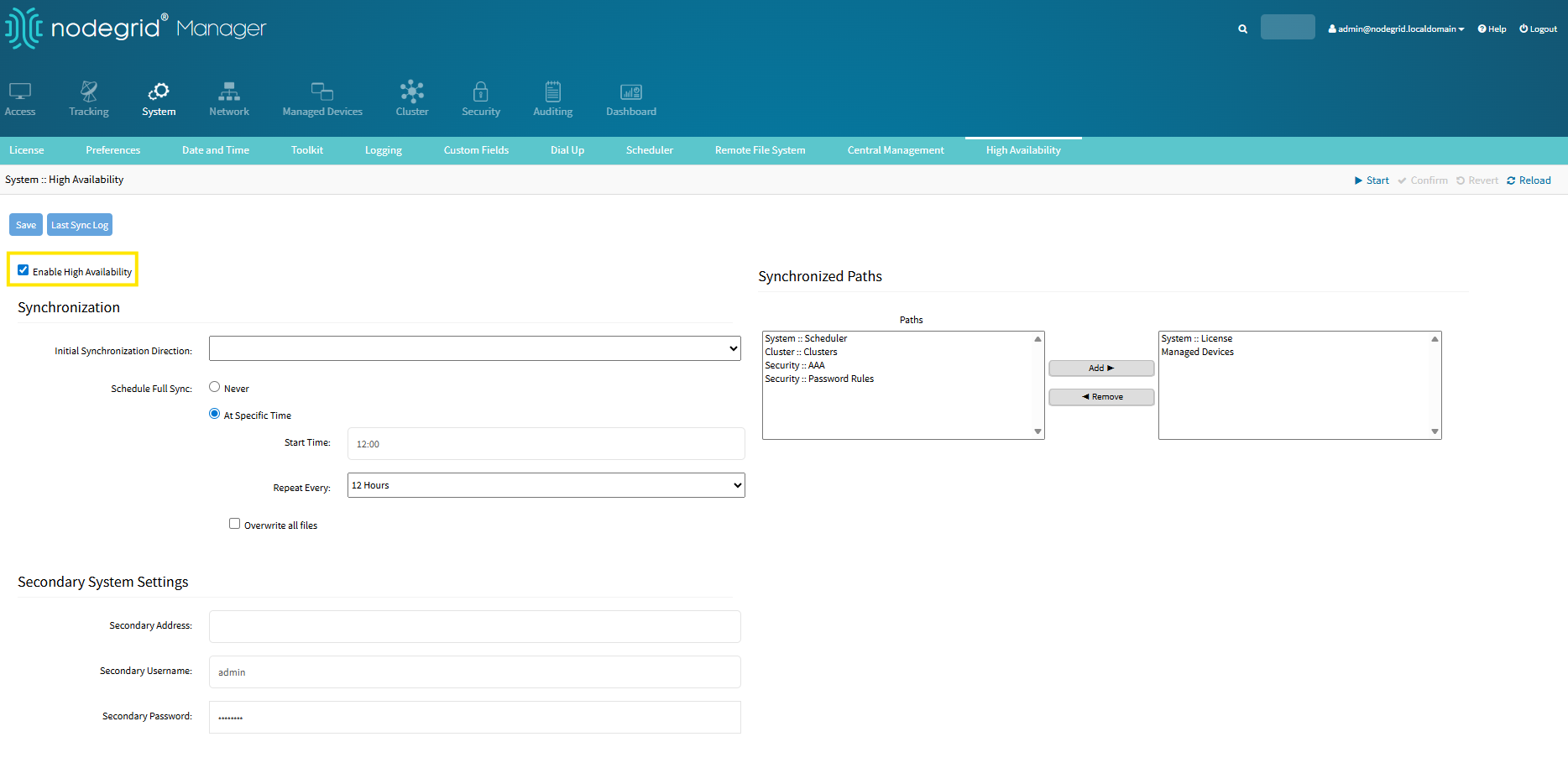
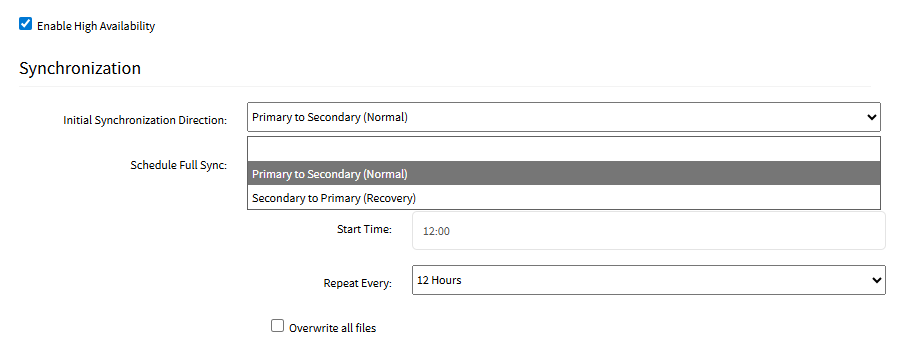
Select the Enable High Availability checkbox
The configuration fields are displayed
Enable High Availability checkbox selected displays the configuration fields.
Initial Synchronization
Click the Initial Synchronization Direction drop-down menu
Select an option below (Primary to Secondary (Normal) is common for first-time HA setup)
Primary to Secondary (Normal): Copy the configurations selected from the Primary to the Secondary. Replaces the Secondary current configuration, restarting related processes.
Secondary to Primary (Recovery): Copy the configurations from the Secondary to the Primary. Replaces the Primary current configuration, restarting related processes. Ideally used for Primary recovery.
Synchronization.
Select Never or At Specific Time for Schedule Full Sync
If At Specific Time was selected, click the Repeat Every drop-down menu
Select the desired amount of time to repeat the process of Full sync
Select the Overwrite all files checkbox (optional)
If selected, when there is a Full Sync, all configurations and managed devices will be copied, which can lead to longer wait times.
Note
Schedule Full Sync option helps when both Primary and Secondary are out-of-sync. It is a one-way sync from the Primary to the Secondary. When scheduled, this option stops all synchronization processes at that specific time, copies all synchronized paths configurations to the Secondary, and then re-starts synchronization.
The recommendation is for the Schedule Full Sync option to be utilized.
Warning
When configuring High Availability withlimit_concurrent_sessions=yes(step 5C) for the Admin group on both Primary and Secondary Nodegrids, it is necessary to have at least one free Web/API session for the setup to work. E.g., if maximum_web_api_sessions=2, the user can have at maximum one Web or API session open before High Availability configuration.
Configure Synchronized Paths
Synchronized paths are the configurations that will be copied from the Primary to the Secondary.
Only the configurations of the selected path will be copied/synced/overwritten, but there are some limitations (check note) per path.
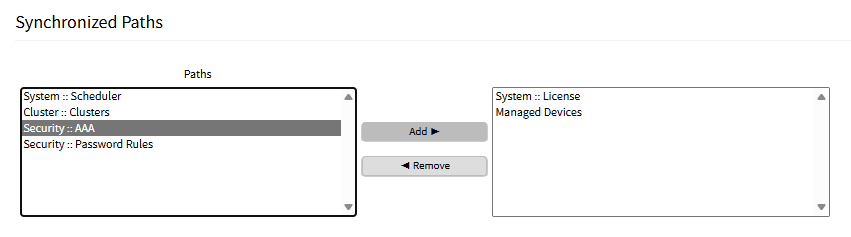
Select the Paths in the left box and click Add
To remove, select the Paths on the right boxand click Remove
Synchronized Paths.
Note
For more details on the limitations, please refer to Synchronized Paths in the Post-Setup and Troubleshooting section below.
Configure Secondary System Settings for High Availability
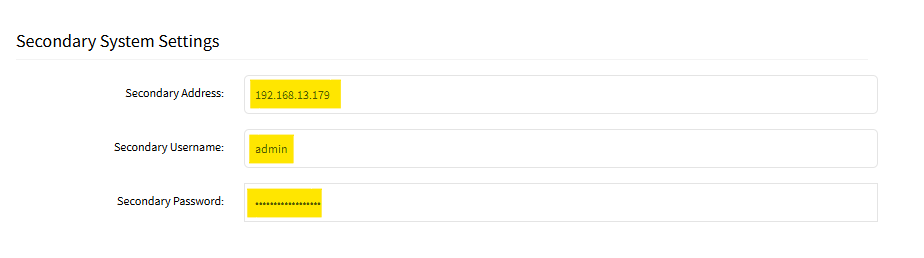
In Secondary Address, enter the IP Address of the Secondary Nodegrid
Enter the Secondary Username
Enter the Secondary Password
Secondary System Settings.
Click Save
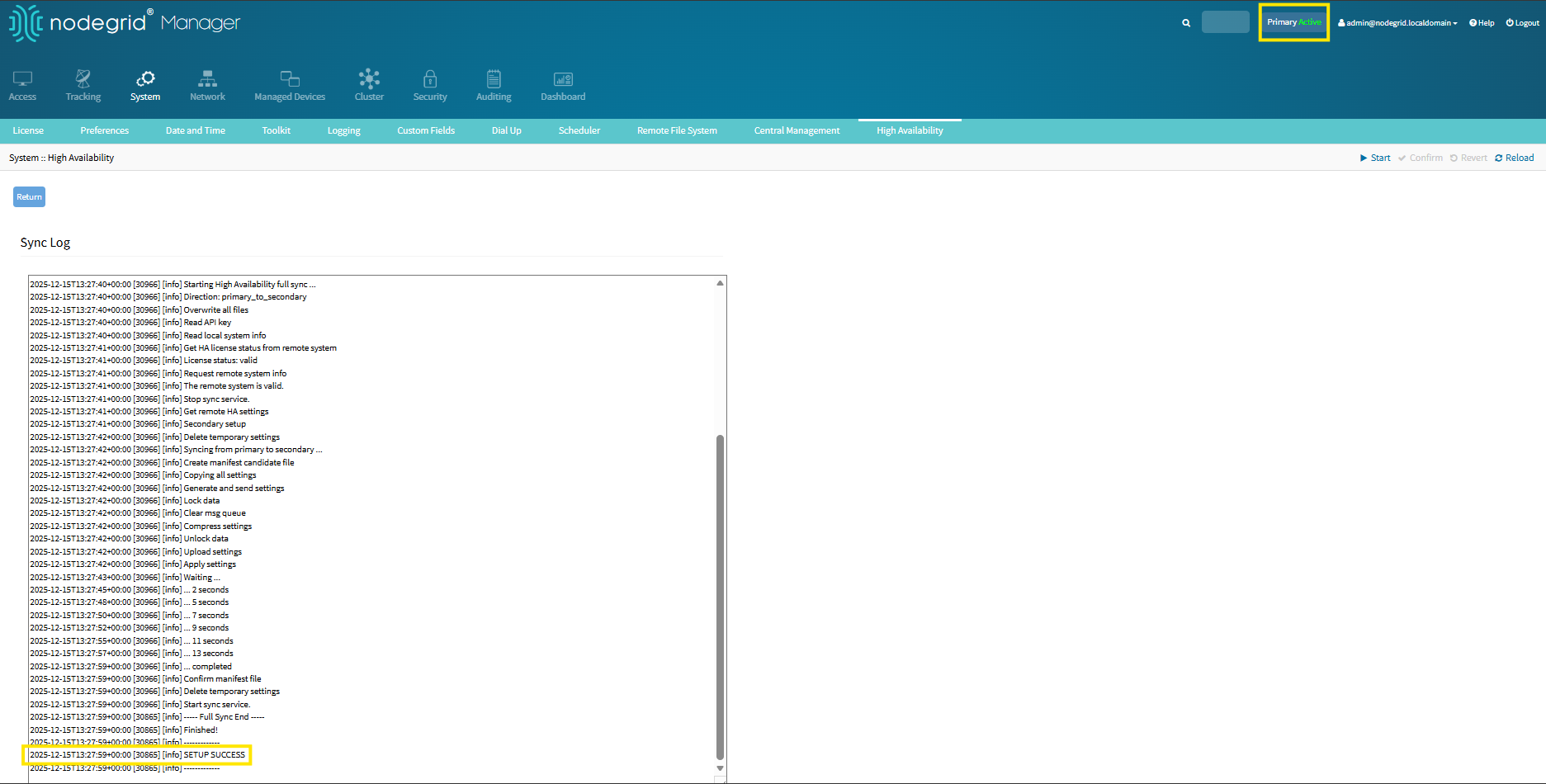
Sync Log is displayed to show High Availability setup has started
Sync Log of the setup was a success and the status of the Primary is ACTIVE.
Note
The credentials entered for the Secondary Address must be of an Admin user.
Alert
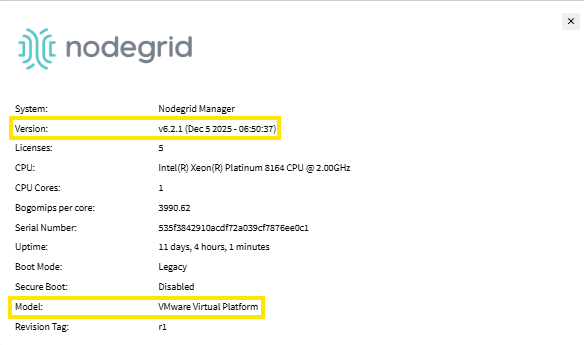
High Availability is only compatible when both the Primary and Secondary are using the same OS Version and same Device Model.
For Nodegrid Manager (Virtual Machines), the Device Model can be different.
Version and Model.
Post-Setup and Troubleshooting
Full Sync
It is possible to execute a Full Sync if necessary. It can be scheduled or executed manually. Full Sync keeps a temporary list with all the files previously synced via Full Sync. Full Sync always compares files against the temporary list, only sending modified files to the Secondary. If there are no modified files, nothing will be sent. The Overwrite all Files option deletes the temporary list and sends all synced files to the secondary.
Log into the Primary Nodegrid as an Admin user
Go to the SYSTEM::HIGH AVAILABILITY page
Click on Full Sync
Select an option from the Synchronization Direction drop-down menu
Primary to Secondary (Normal): This will copy the configurations selected from the Primary to the Secondary.
Secondary to Primary (Recovery): This will copy the current configurations of the Secondary to the Primary. Ideally used for Primary recovery.
Click on Full Sync
Sync Log is displayed, and the Full Sync will be performed
Live Sync
Live sync is one-way (Primary to Secondary), changes made on the synced paths on the Primary are sent to the Secondary. There is a message queue, all the changes made on Primary are enqueued and sent to the Secondary, when it is available.
Synchronized Paths
After configuring High Availability, it is possible to configure additional synchronized paths.
Log into the Primary Nodegrid as an Admin user
Go to the SYSTEM::HIGH AVAILABILITY page
Under Paths, select the path that will be added
Click on Add
Click on Save
Sync Log is displayed, and the Full Sync will be performed.
Note
The synced paths on the Secondary are read-only. Changes can’t be performed on the Secondary system when the Secondary is NON-ACTIVE.
Any changes made to synchronized paths on the Primary, will cause a Full sync to happen.
Limitations of Synchronized Paths
The list below displays all possible paths that can be synchronized and their limitations.
System::License
All licenses are synced when this path is selected.
All License types can be synced.
Even if this path is not selected the HA license is always installed on the secondary during the setup if no valid HA license is found.
License validation is disabled on the HA secondary while the HA is enabled, avoiding license conflicts.
[LIMITATION] License Pool Server (LPS) is not supported by HA. LPS which is only available in the Cluster.
System::Scheduler
Excluding the 'HA Full Sync schedule' all the tasks scheduled are synced.
Managed Devices
All the Managed Devices types can be synced, including physical serial ports.
The option "Device access enforced via user group authorization" from the path SECURITY:: SERVICES is synced by the Full Sync.
The device mode is changed from Enabled to On-demand during the Live Sync and Full Sync.
The Hostname detection is also a supported feature.
[LIMITATION] Only the Discovery of 'Serial console ports' is fully supported.
[LIMITATION] Discovery log is not synced.
[LIMITATION] The path MANAGED DEVICES::VIEWS::IMAGE is not synced.
Security::AAA
This path includes Local Accounts, Authorization and Authentication.
All the Local Accounts can be synced including the users home directory.
Files with the extension .iso are not synced.
User home directory from delete users is also deleted on the secondary.
[LIMITATION] 'Change password' is only synced with the Full Sync.
[LIMITATION] 'Change password at first login' is only synced with the Full Sync.
[LIMITATION] The HA setup can not be performed if the OTP (One Time Password) is enabled for root/admin users on secondary system.
[LIMITATION] RSA (Second Factor Authentication) is not supported.
[LIMITATION] SSO is not supported.
Security::Password Rules
All the password rules are synced.
Cluster::Clusters
[LIMITATION] Only the 'Multi cluster join' is supported by the Live Sync and not Full Sync.
Promote Secondary Nodegrid to Active
High Availability allows for the Secondary device to be promoted in case the Primary device is out of order. Promoting the Secondary device to ACTIVE allows for changes on synched paths on the Secondary. The Primary device will be NON-ACTIVE causing the Live Sync to stop. Only a Full Sync from the Primary will change the Secondary from ACTIVE to NON-ACTIVE, which will then restart the Live Sync.
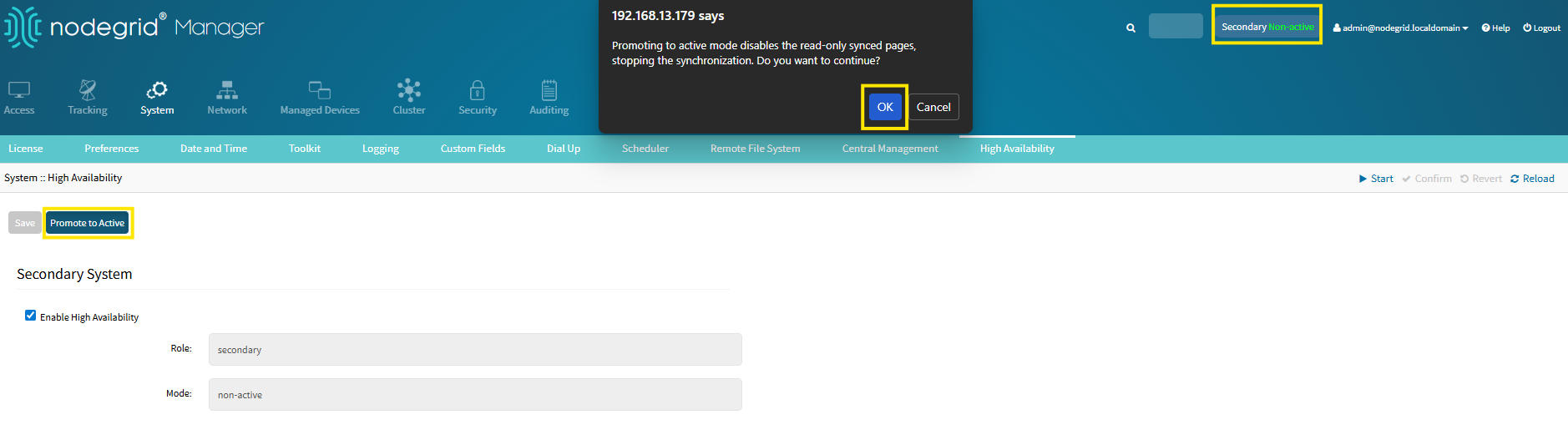
Log into the Secondary Nodegrid as and Admin user
Navigate to the SYSTEM::HIGH AVAILABILITY page
Click on Promote to Active button
A pop-up warning is displayed
Click OK
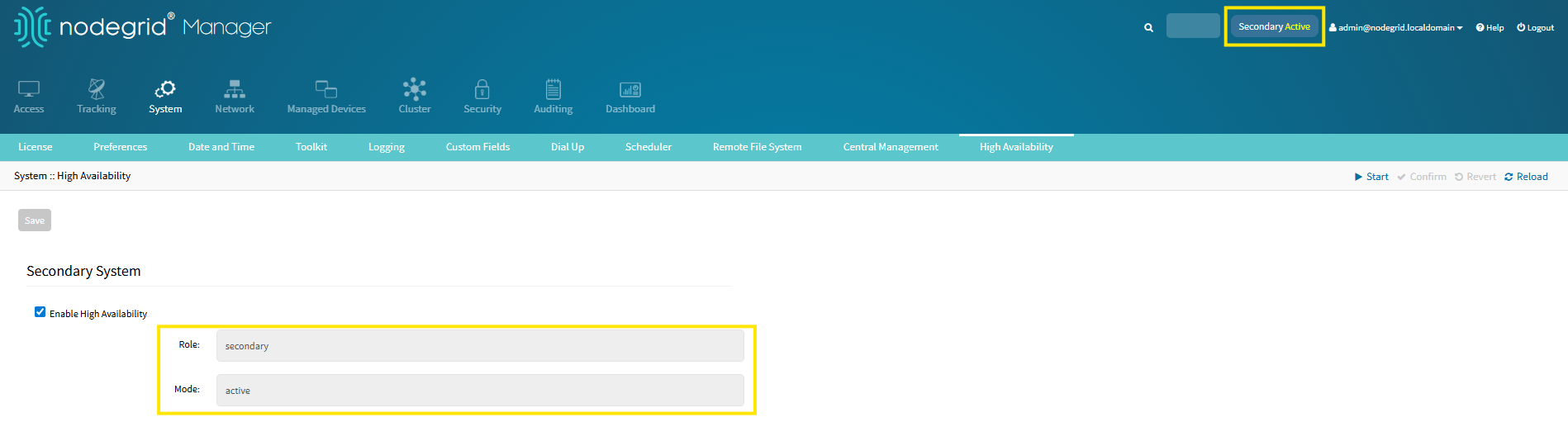
The Secondary is now acting as the Primary
Synchronization of devices is no longer occurring
Promote Secondary from NON-ACTIVE to ACTIVE.
Secondary is now ACTIVE.
Primary is now NON-ACTIVE.
Note
Promoting the Secondary is only necessary if synchronized configurations need to be changed.
Restore Synchronization with High Availability
After promoting the Secondary to ACTIVE, it is possible to restore synchronization after the Primary is back online.
Login to the Primary Nodegrid as an Admin user
Go to the SYSTEM::HIGH AVAILABILITY page
Click on Full Sync
Select Primary to Secondary (Normal) or Secondary to Primary (Recovery) from the Synchronization Direction drop-down menu
Primary to Secondary (Normal): Copy the configurations selected from the Primary to the Secondary. Replaces the secondary current configuration, restarting related processes.Ideally used if no changes were done to the Secondary when it was ACTIVE.
Secondary to Primary (Recovery): Copy the configurations from the Secondary to the Primary. Replaces the primary current configuration, restarting related processes. Ideally used for Primary recovery if changes were done onthe Secondary when it was ACTIVE and it is desired to bring those changes to the Primary.
Click on Full Sync
Overwrite all files checkbox is selected by default when using Primary to Secondary (Normal) option
Primary to Secondary (Normal) selected.
Secondary to Primary (Recovery) selected.
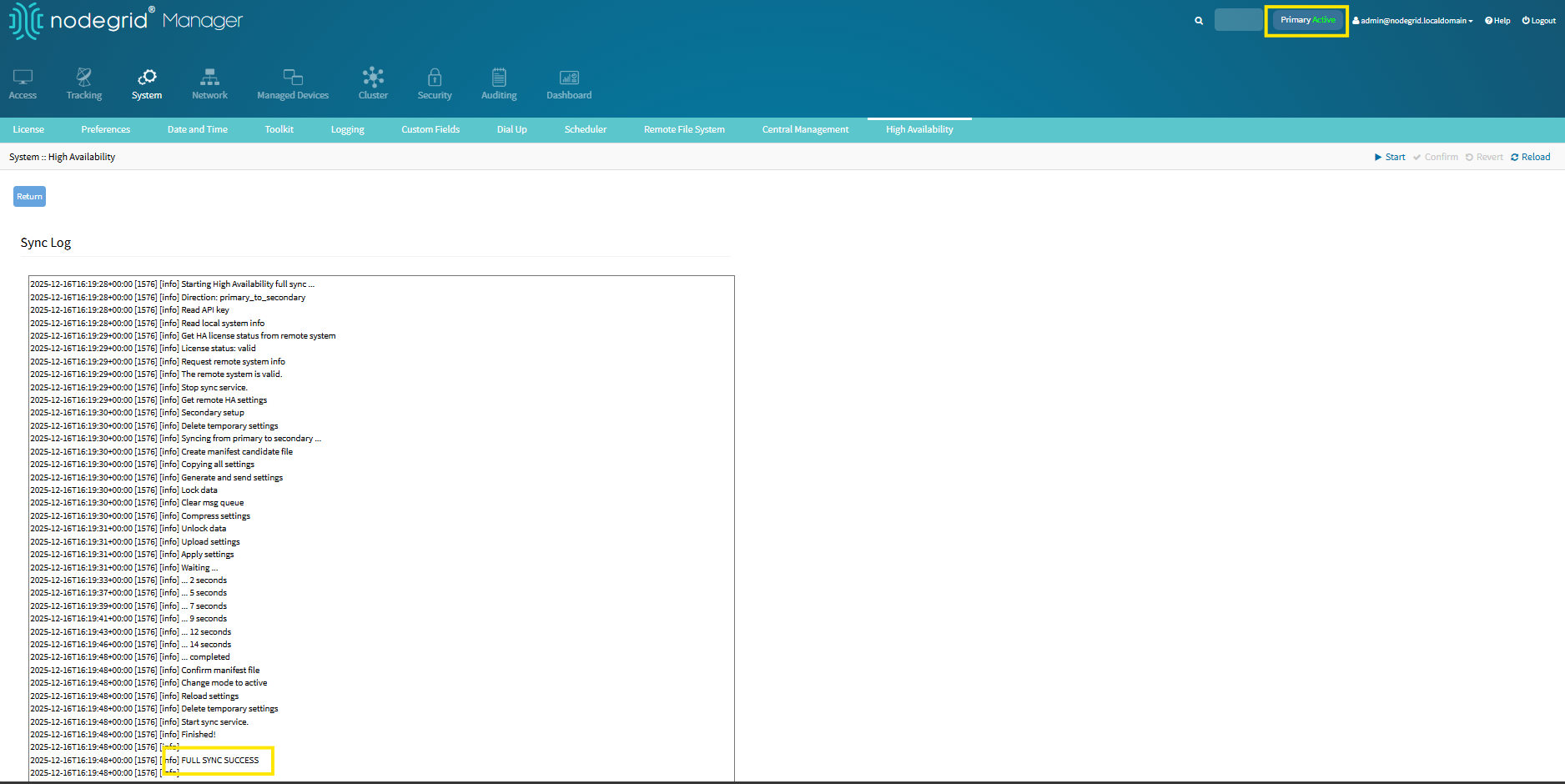
Full Sync is complete and now the Primary Nodegrid is ACTIVE.
Tracking High Availability
On the TRACKING::HIGH AVAILABILITY page it is possible to analyze the status of the Primary and Secondary.
Status
It is possible to keep track of real time status of the Primary and Secondary Nodegrids.
Status: Possible status for High Availability are
Disabled
Disabling
Online
Setup Running
Live Sync Starting
Live Sync Failed
Full Sync Running
Full Sync Failed
Error
Unknown
Role: Primary/Secondary
Mode: Active/Non-Active
Synchronism: Started/Stopped
Connection: Connected/Disconnected
Secondary Address: IP Address of the Secondary Nodegrid.
Pending Configurations: It will display a number if there are any configurations in the temporary list to be sent to the Secondary Nodegrid.
Last Full Sync: Date and Time of the last Full Sync.
Last Heartbeat: Date and Time of the last Heartbeat.
History
With history it is possible to track the status of High Availability within the set time frame desired.
No Data (Grey) - High Availability has not been set up.
Disabled (White) - High Availability is not enabled.
Online (Green) - High Availability is online and synchronization is working as intended.
Error (Red) - There is an issue with the Primary and Secondary synchronization.
Live Sync Failed (Yellow) - Synchronization is rejected by the Secondary.




(1).png)
(2).png)