---
title: "Management tab"
slug: "management-tab"
status: "update"
updated: 2025-01-24T07:20:37Z
published: 2025-01-24T07:20:37Z
canonical: "docs.zpesystems.com/management-tab"
---
> ## Documentation Index
> Fetch the complete documentation index at: https://docs.zpesystems.com/llms.txt
> Use this file to discover all available pages before exploring further.
# Management tab
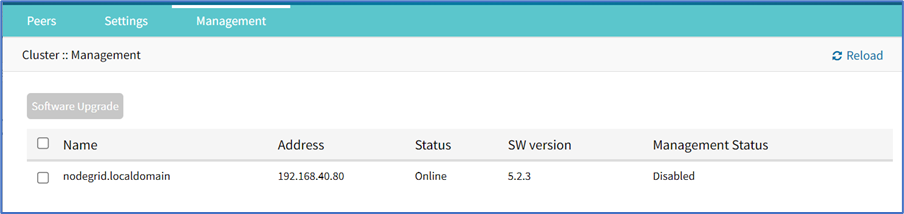
## Software Upgrade
Nodegrid can be updated on the WebUI or CLI.
NOTE
Software upgrade/downgrade requires several minutes to process. Be patient.
Software can be upgraded or downgraded on this procedure.
1. Go to *Cluster :: Management*.
2. Select checkbox next to the name for software management.
3. Click **Upgrade Software** (displays dialog).
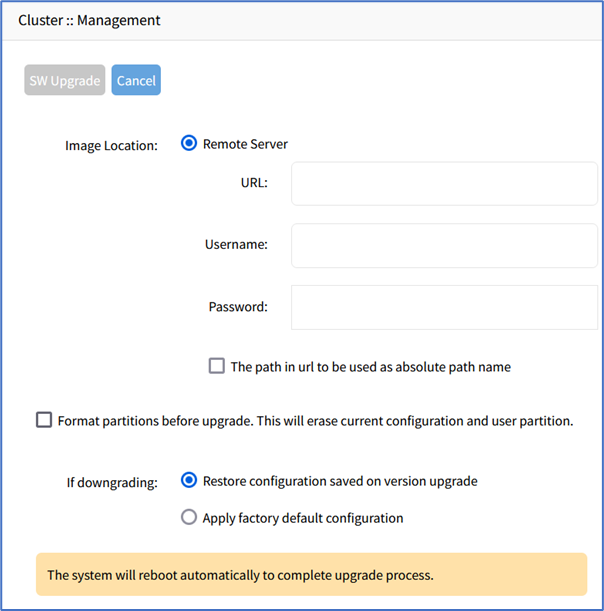
4. On *Image Location* menu, select **Remote Server**. To upload the software image, you need to enter the remote server URL and its credentials. The remote server can either be hosted externally or be another Nodegrid server.
| Remote Server | Steps |
| --- | --- |
| Hosted Externally | 1. Enter the URL of the server where the image is located. This can be an IP address, a hostname, or an FQDN. - If using an IPv6 address, enclose it in brackets [ ... ]. - Supported protocols for remote file transfer include FTP, TFTP, SFTP, and SCP. 2. Enter the credentials of the remote server. |
| Nodegrid Network Boot Upgrade using second Nodegrid with HTTP file repository | **Prerequisite steps:** 1. Log into the Nodegrid device that acts as the remote server(which stores the ISO files): 1. Upload the file to the File Manager under the datastore folder using the datastore option. Refer to the for instructions. 2. Go to S*ecurity :: Services :: General Services* and checkbox **Enable HTTP/S File Repository.** To upload the software image files: 1. Log into the Nodegrid device that requires upgrade. 2. Enter the complete path in the URL field. The path format is: https:///datastore/. 3. Enter the credentials of the Nodegrid server. **Example:** Nodegrid Host 1: HTTP repository which stores Nodegrid ISO files Nodegrid Host 2: Unit to be upgraded ***Nodegrid Host 1 configuration:*** 1. Transfer Nodegrid ISOs to the HTTP repository directory. You can use the Web UI or CLI. - Web UI: Upload ISO to the datastore folder in *System :: Toolkit :: File Manager*. - CLI: ```plaintext scp Nodegrid.iso root@192.0.2.0:/var/firefox/datastore/ # OR scp Nodegrid.iso root@192.0.2.0:/var/local/file_manager/datastore ``` 2. Get the ISO from the HTTP repository: ```plaintext wget https://192.0.2.0/datastore/nodegrid.iso --no-check-certificate ``` 3. Go to *Security :: Services :: General Services*. 4. Select the checkbox **Enable HTTP/S File Repository**. ***Nodegrid Host 2 configuration:*** 1. You can enter the path using Web UI or CLI. 1. Web UI: Enter the complete path in the URL field, https://192.0.2.0/datastore/nodegrid.iso. 2. CLI: Setup network boot upgrade options and reboot the system to upgrade: ```plaintext [admin@nodegrid /]# cd /settings/system_preferences/ set unit_ipv4_address = 192.0.2.1 set unit_netmask = 255.255.255.0 set unit_interface = eth0 set iso_url = https://192.0.2.0/datastore/nodegrid.iso [+admin@nodegrid /]# commit [admin@nodegrid /]# reboot ``` |
5. (if applicable) *If downgrading* menu (select one):
- **Restore configuration saved on version upgrade** radio button
- **Apply factory default configuration** radio button
6. Review details.
7. Click **SW Upgrade**.