---
title: "Monitoring Templates"
slug: "monitoring-templates"
status: "update"
updated: 2023-03-31T14:03:18Z
published: 2023-03-31T14:03:18Z
canonical: "docs.zpesystems.com/monitoring-templates"
---
> ## Documentation Index
> Fetch the complete documentation index at: https://docs.zpesystems.com/llms.txt
> Use this file to discover all available pages before exploring further.
# Monitoring Templates
This monitors and collects sensor data from Managed Devices, connected to a Nodegrid sensor or that support SNMP or IPMI protocol.
The collected data are defined and controlled through Monitoring Templates which will be assigned to a monitored device during its configuration.
### Customize a Monitoring Template
Several preexisting monitoring templates are available. These typically fulfill user requirements. As needed, these templates can be customized. All templates are text files, located in sub directories at /etc/collectd.templates according to the protocol used to collect monitoring data (SNMP or IPMI).
```none
/etc/collectd.templates/snmp
/etc/collectd.templates/ipmi
```
Any new file added to these directories automatically appear in the user interface.
## SNMP Template
### Create a new SNMP Template
#### CLI Procedure
1. Login to the Shell as root.
2. Create a copy of one existing template as a starting point for the new template.
3. Each SNMP template file has two types of subsections:
- Data (one entry per data point, each identified by a unique ID.)
- Host (one single entry, defined SNMP parameters, collecting interval, and data points to be collected.)
4. The template file should only include data points of general common use. All other data points can be removed from the file.
5. Use commit to save the template.
**Settings and Values for Data Entry**
| **Setting** | **Value** | **Description** |
| --- | --- | --- |
| Data | Internal name of the data point as it is collected. Should be unique. | Cannot have spaces. Example: "pdu_in_cur", "pdu_in_vol". |
| Type | Temperature, fan speed, humidity, counter, percent time left, voltage, current power, apparent_power, power_factor, frequency | Data type |
| Table | True/False | reflects if the OID is part of a table or not |
| Instance | True/False | If Table= true (SNMP OID prefix retrieves a list of names associated with the corresponding values). For example, in a PDU this could be the outlet name. If Table = false (name of the instance is associated with the value). |
| InstancePrefix | String | (optional) String to prepend to the Instance, enclosed in double quotes. |
| Values | True/False | If Table = true (SNMP OID prefix retrieves a list of values). If Table = false (SNMP OID retrieves a single value). |
| Scale | Decimal value | (optional) Decimal value to be multiplied to the value retrieved before persisting it. |
**Example:**
```none
Type "current"
Table true
Instance ".1.3.6.1.4.1.476.1.42.3.8.40.20.1.20"
Values ".1.3.6.1.4.1.476.1.42.3.8.40.20.1.130"
Scale 0.01
```
The host entry in an SNMP template only requires an adjustment in the Collect setting. The values list should contain a list of all data entries to be collected. All listed data entries require a corresponding data entry definition.
### IPMI Discovery Template
The discovery template for IPMI automatically discovers all available sensors on an IPMI device. The template has one subsection.
**IPMI Options**
| **Setting** | **Value** | **Description** |
| --- | --- | --- |
| AuthType | None, md2, md5, straight | Authentication type for the IPMI protocol (default: negotiate the strongest one). |
| Privilege | Callback, user, operator, admin | Privilege level for IPMI protocol (default: admin). |
| Sensor | Name of the Sensor to be collected | Selects sensors to collect or ignore, depending on “Ignore, Selected” setting. Can be defined multiple times, each for one selected sensor. |
| IgnoreSelected | True/False | If true, does not collect for the sensors selected by Sensor. If false, only collects for the sensors selected by Sensor. |
| Scale | “” | (optional) A decimal value to be multiplied to the value retrieved before persisting it. |
### Enable Monitoring
Monitoring is enabled on a per-device basis. The settings are part of the Managed Device settings.
1. Go to *Managed Devices :: Devices :: :: Management*.**NOTE**For on Devices table, click on a device to display the dialog with sub-tabs.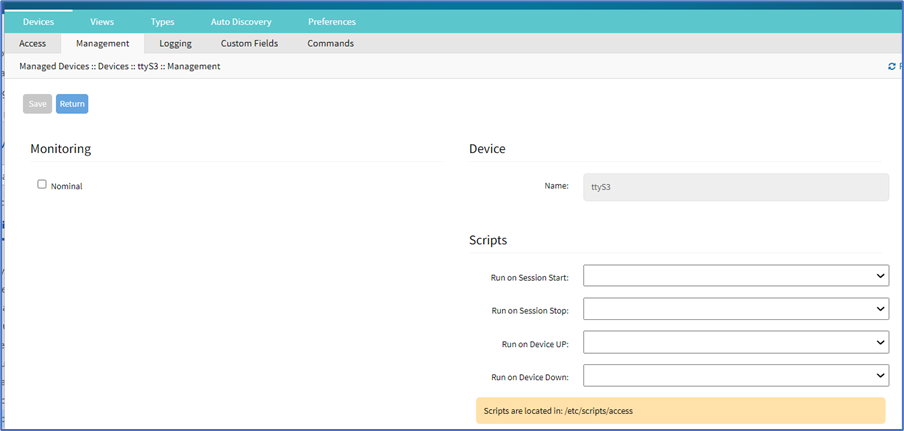
2. Enable and configure the required monitoring protocol like SNMP or IPMI
3. Select **Enable Monitoring** checkbox.
4. Assign the template.
5. Assign the collection interval.
6. Click **Save**.