This section explains how to assign system permissions to group profiles. You can manage user access using permission sets without changing the user profiles. The following table lists:
Available permissions for users.
Description of the permission.
Web UIs and commands demonstrating the functions enabled for the user when each corresponding permission is enabled.
Permission | Description | Commands Enabled |
|---|---|---|
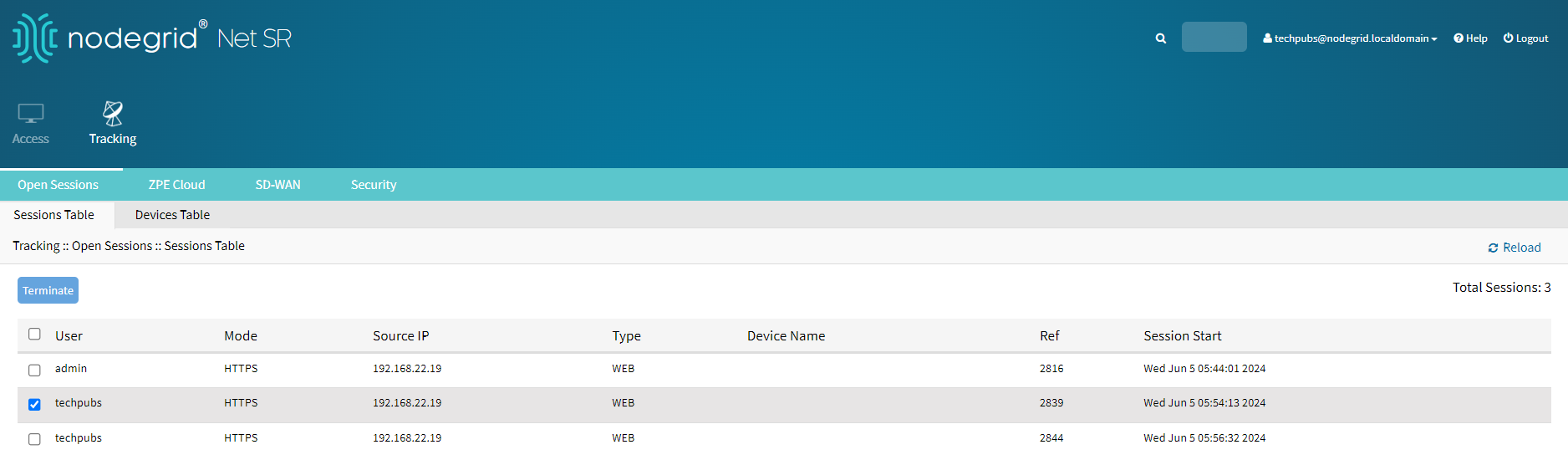
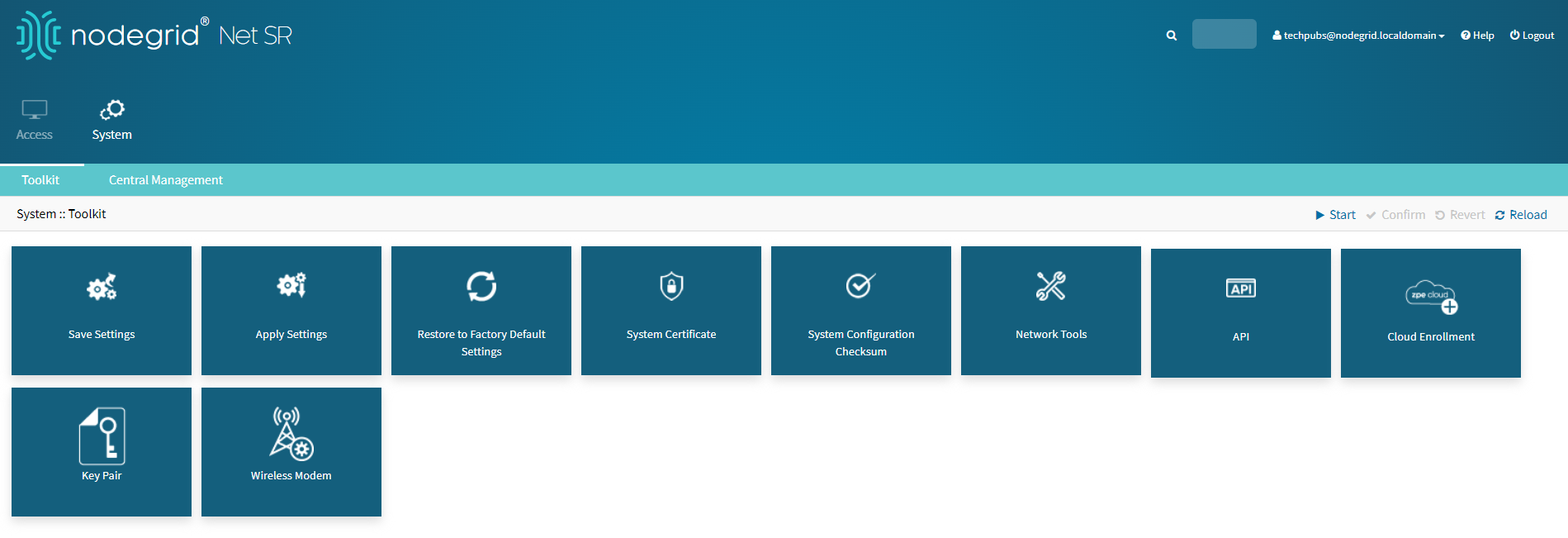
Track System Information | Allows access to track information about the Nodegrid devices and the devices connected to them. The information includes the Event List, System Usage, Discovery Logs, and so on as indicated in the following figure.
| |
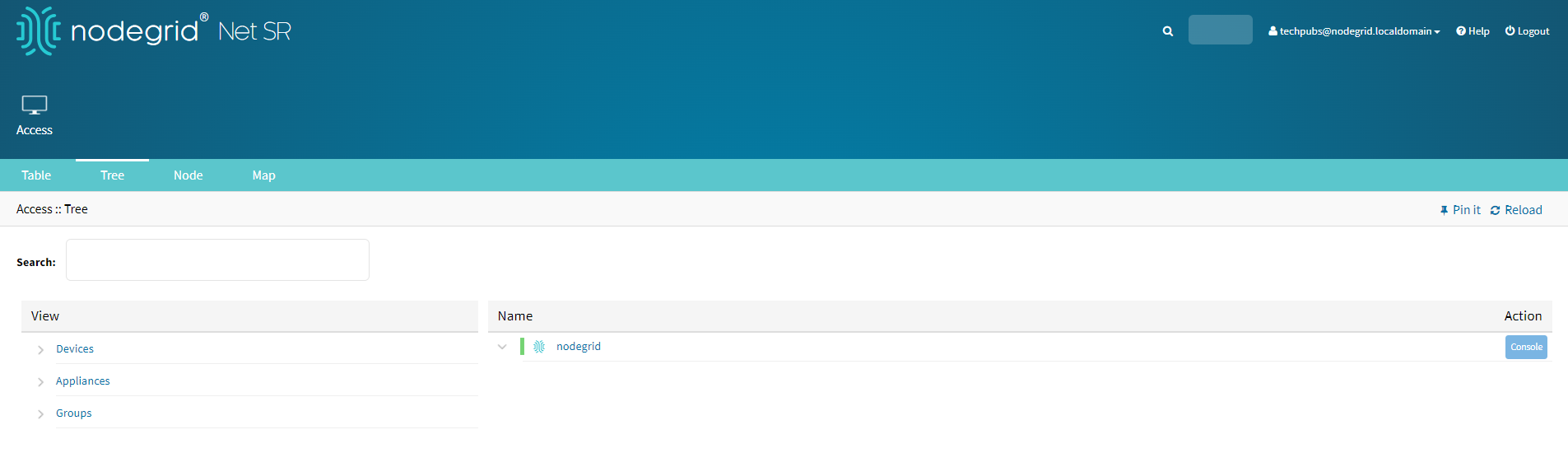
Terminate Sessions | Allows to terminate any open Nodegrid sessions.
| |
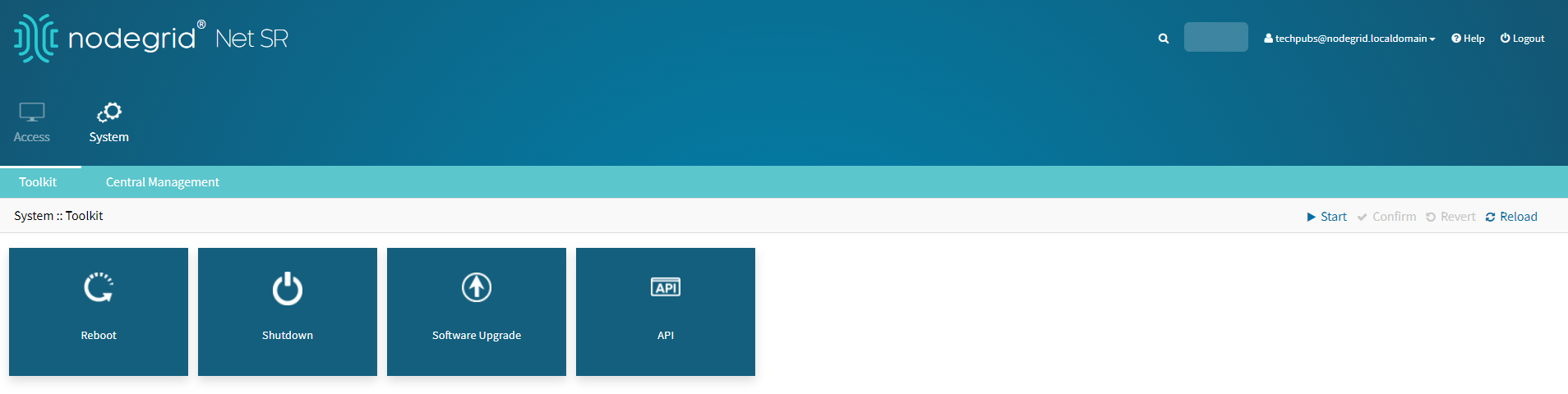
Software Upgrade and Reboot System | Allows to upgrade and reboot the Nodegrid software.
| |
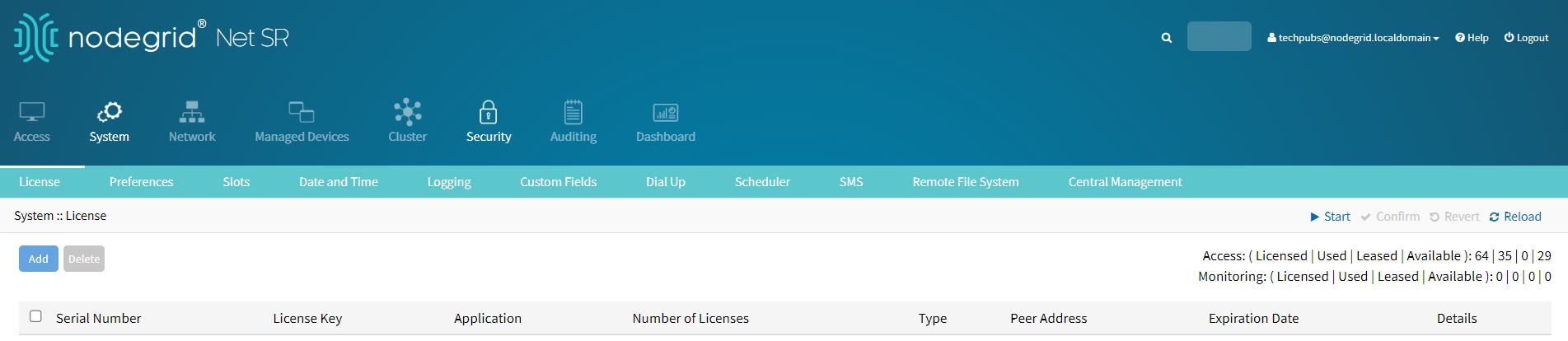
Configure System | Allows to configure the system.
| Note: If you select the option Restrict Configure System Permission to Read Only, all commands from the above list are disabled except for: |
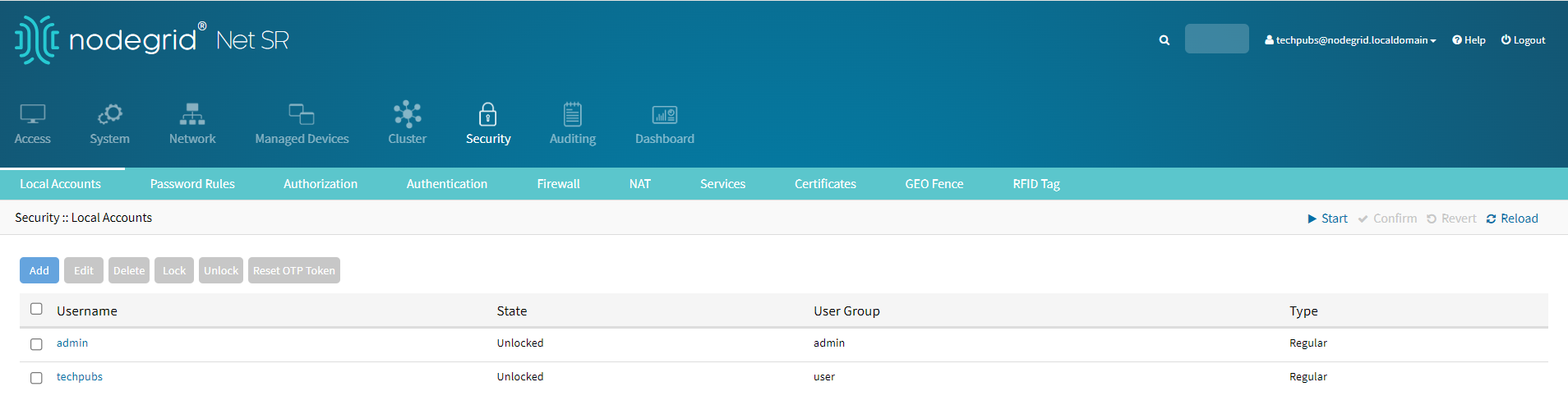
Configure User Accounts | Allows to configure users and groups such as admin users, root users, and so on. To enable Configure User Accounts, Configure System Settings must also be enabled.
| |
Apply & Save Settings | Executes Nodegrid device configurations Apply settings and Save Settings.
| |
Shell Access | Enables shell access to the Nodegrid device.
| |
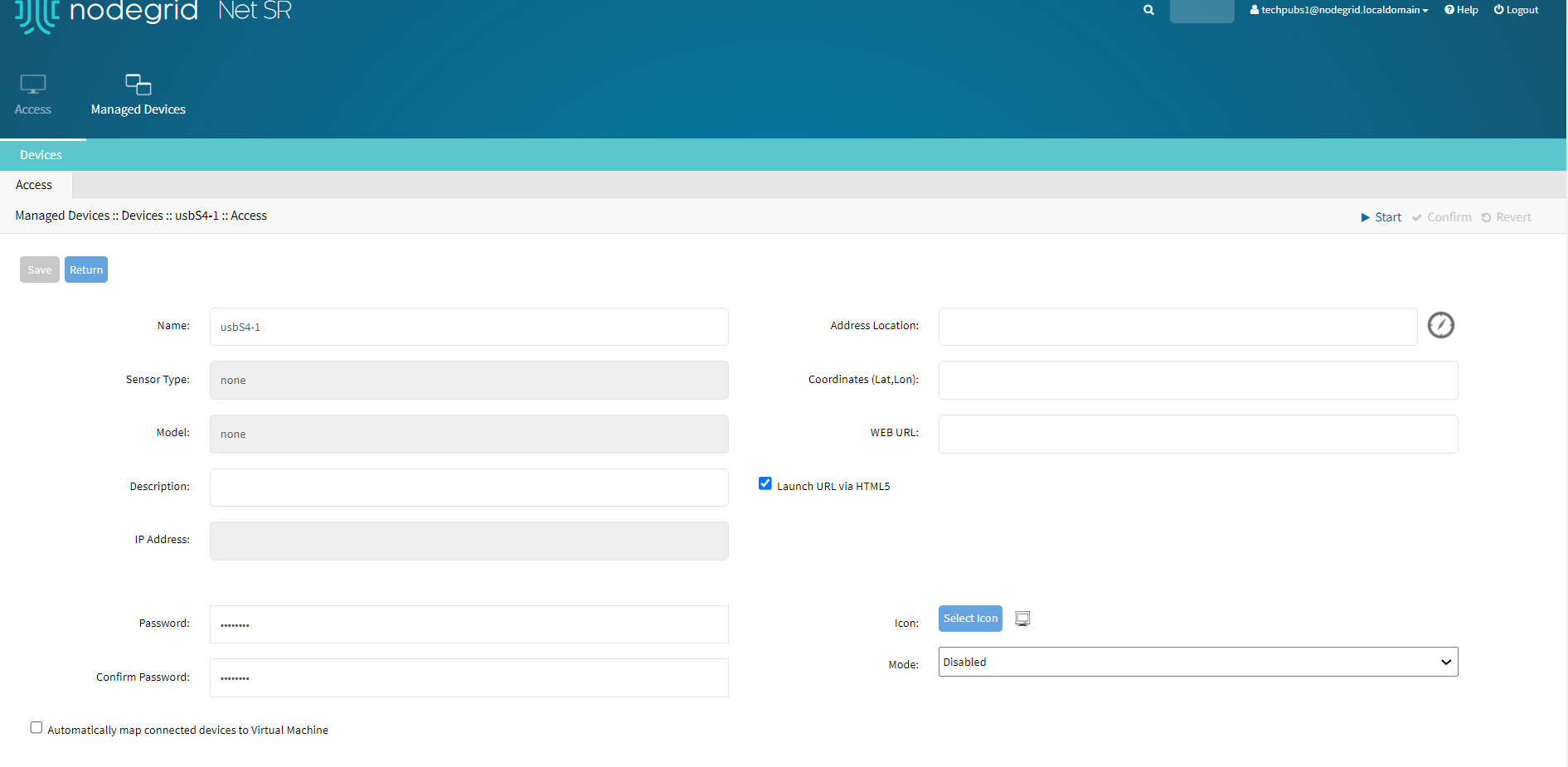
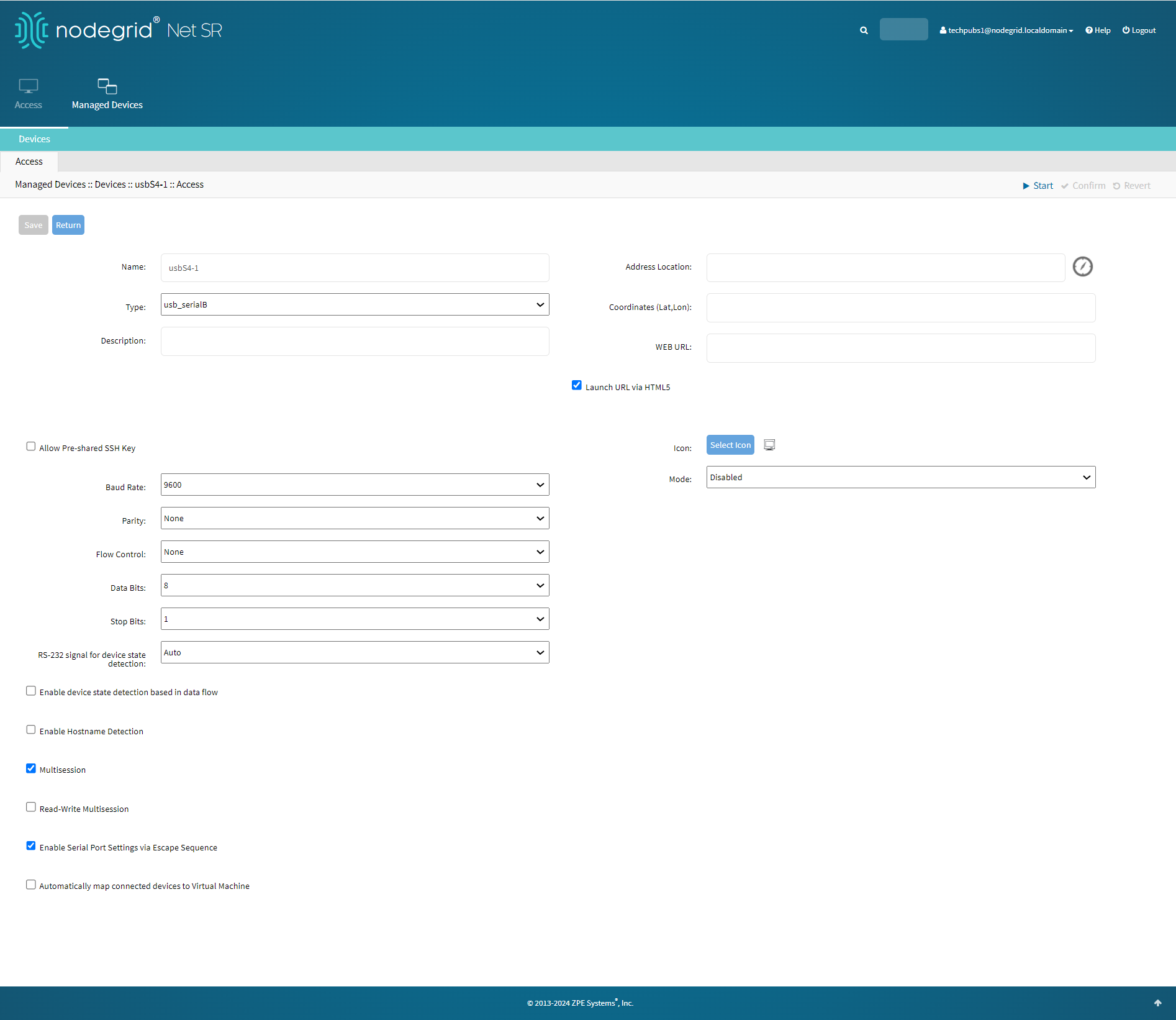
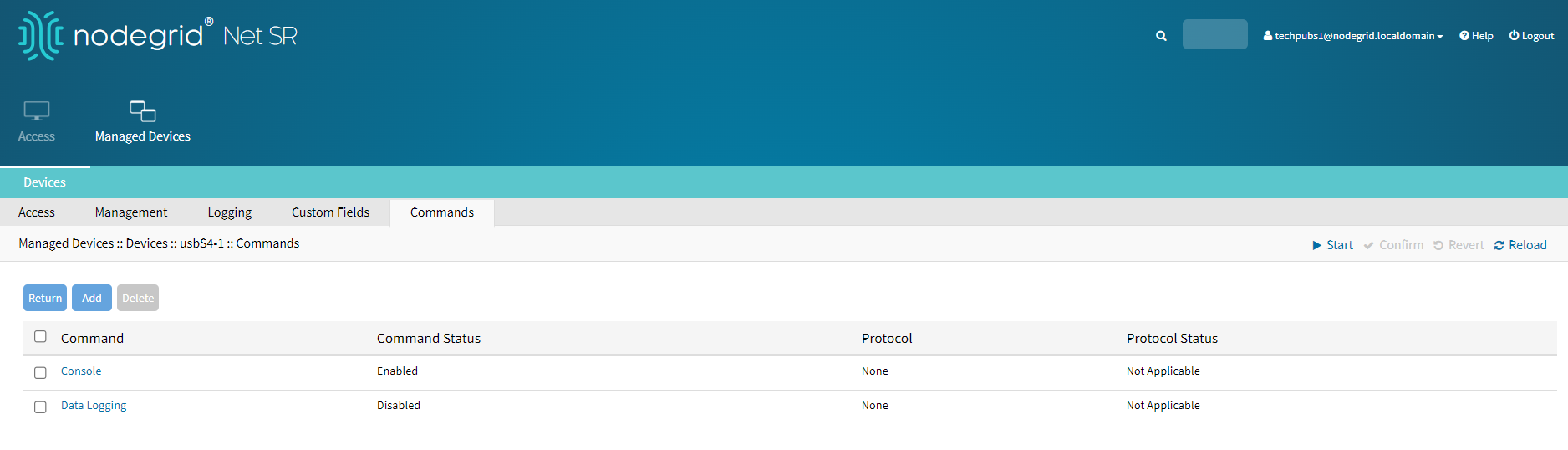
Manage Devices | Enables access to devices connected to the Nodegrid device. Enabling manage devices will require enabling at least one of the following permissions at the device level. Device permissions include:
You can enable either Manage Devices or Configure System permission. Both these permissions cannot be selected together for a device. | |
.png "tracking(1).png")
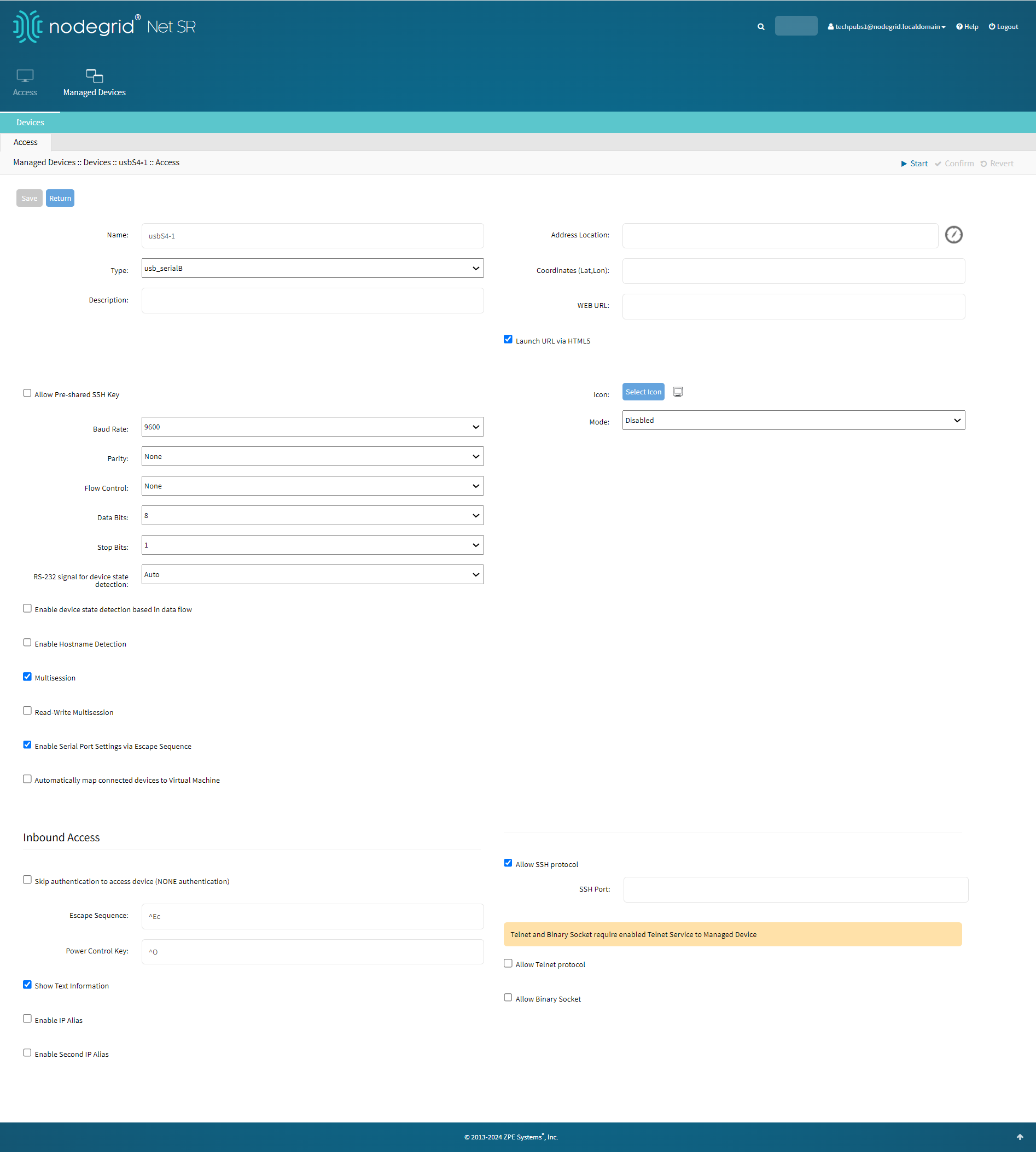
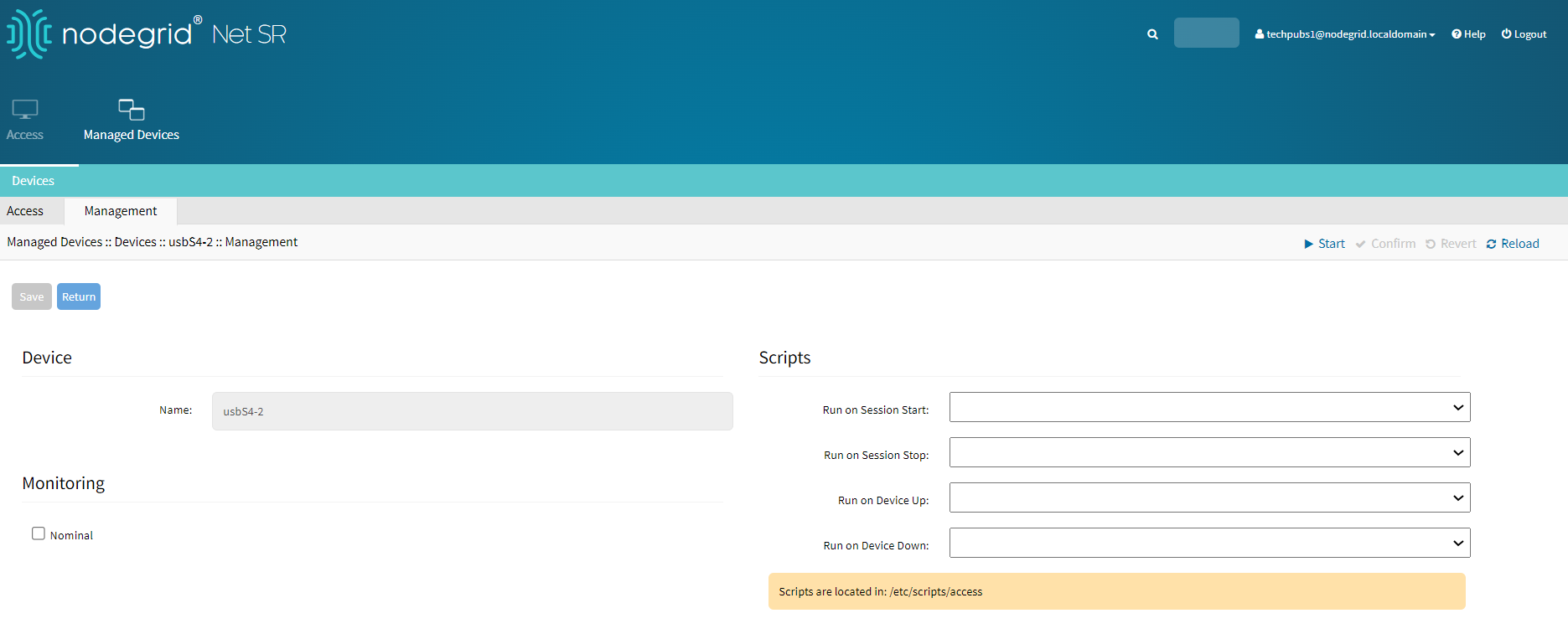
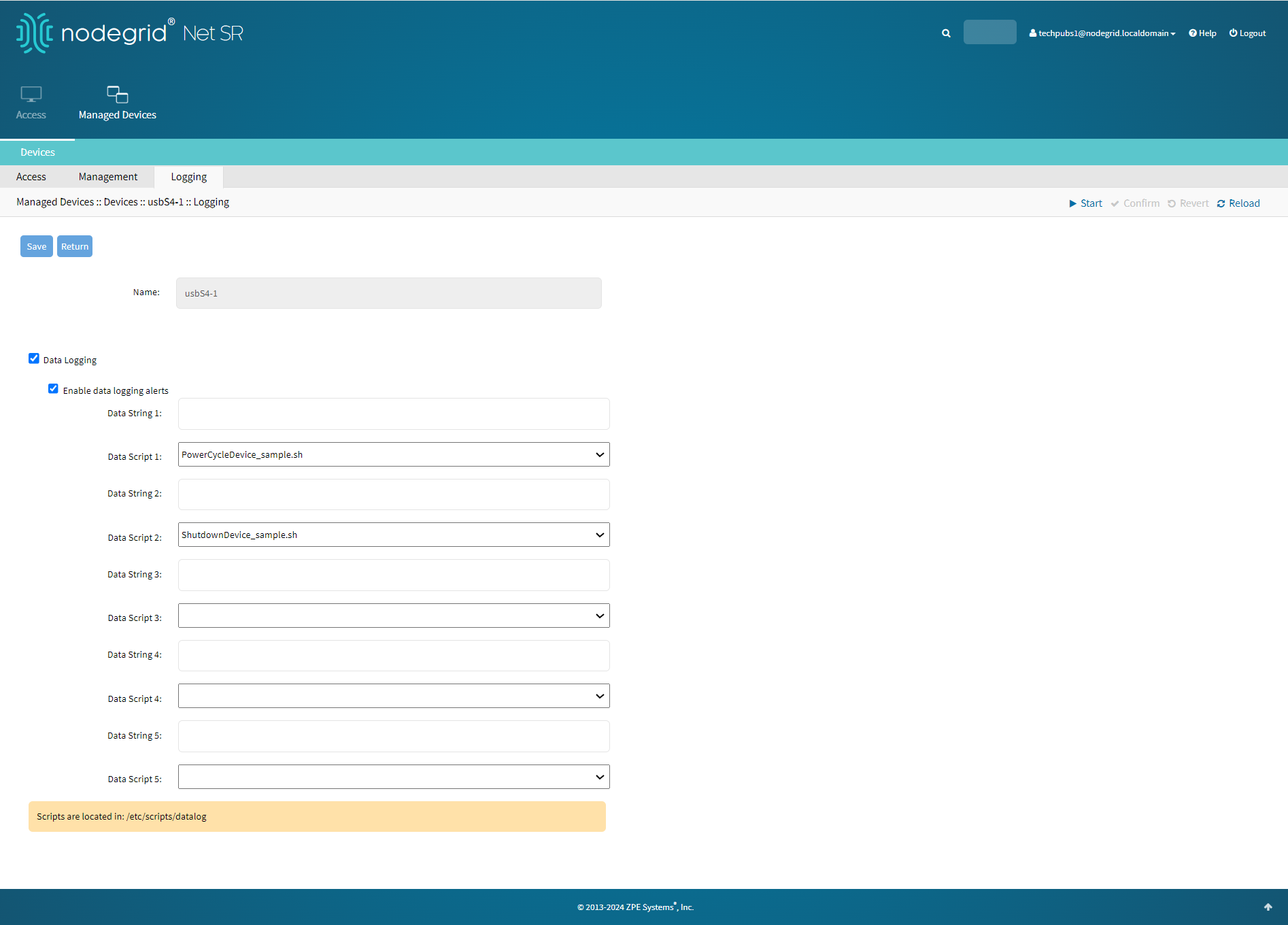
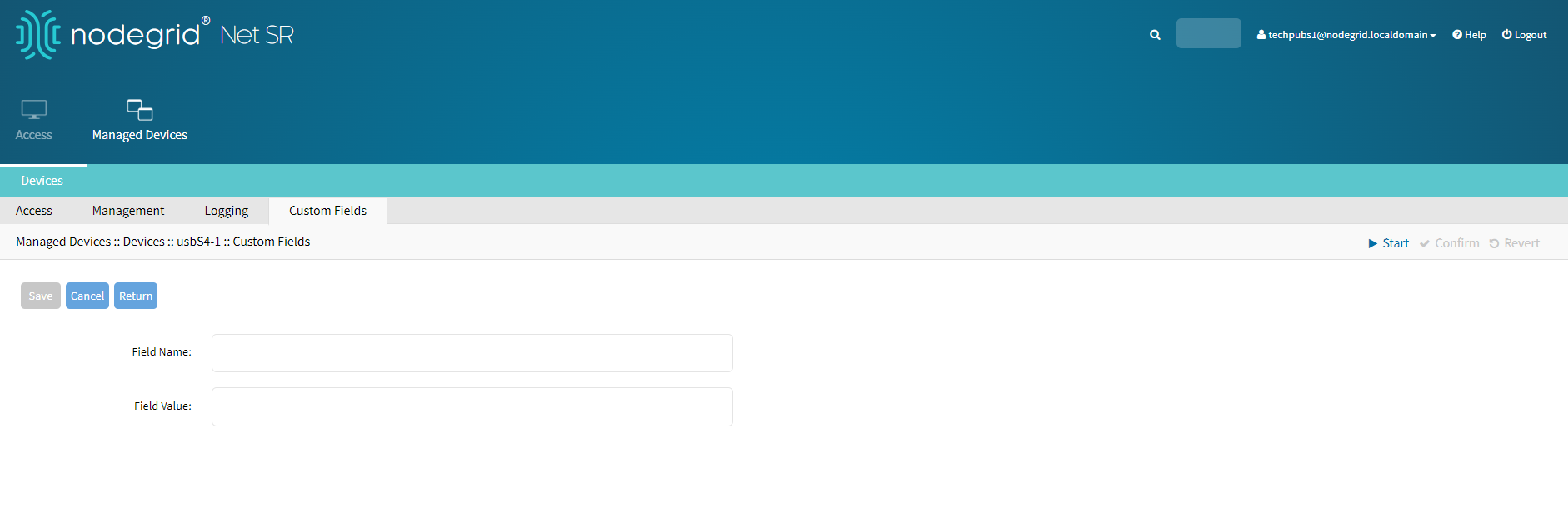
Configure a user profile
To configure a user profile:
Go to SECURITY::AUTHORIZATION
Click on the Group Name
Click on the Profile sub-tab
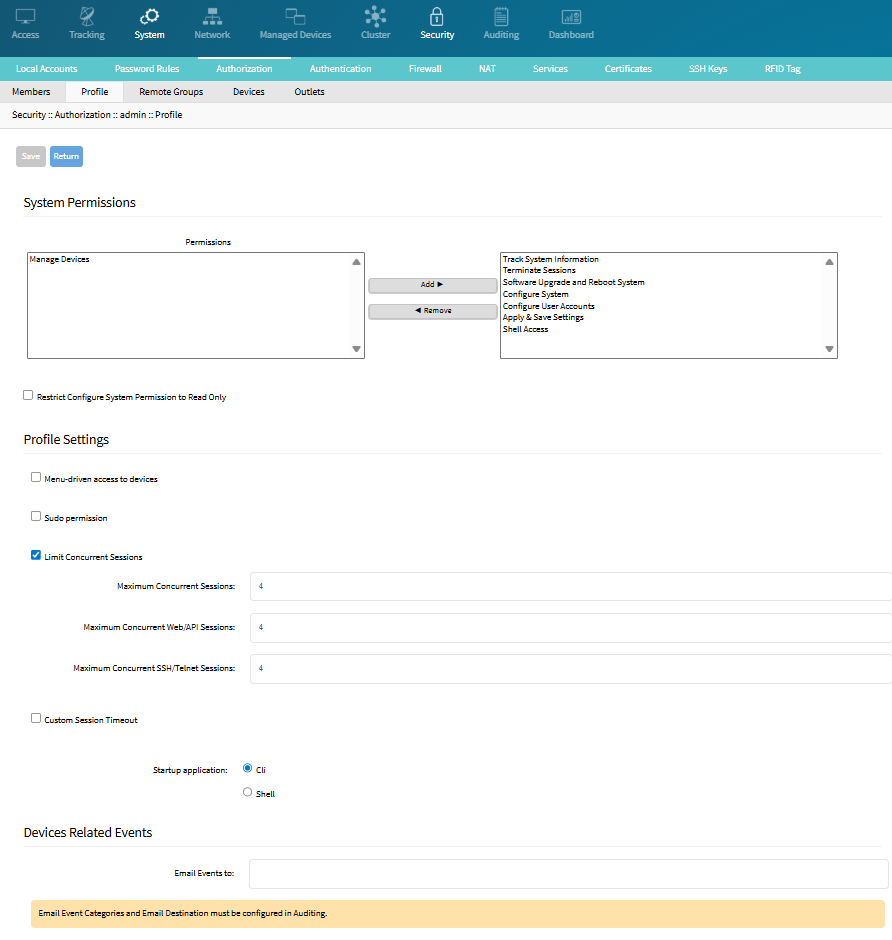
In the System Permissions menu:
To add, select from the left-side panel, and click Add► to move to the right-side panel. To remove from the right-side panel, select, and click ◄Remove
Select Restrict Configure System Permission to Read Only checkbox (granted system settings are visible but cannot be changed)
In the Profile Settings menu:
Select the Menu-driven access to devices checkbox (group members presented a target menu when SSH connection to the Nodegrid device is established)
Select the Sudo permission checkbox (users can execute sudo commands)
Select the Limit Concurrent Sessions checkbox (enables a limit for concurrent sessions)
Three fields are displayed if checkbox is selected, allowing the user to enter the limit of open sessions
Enter the Maximum Concurrent Sessions (limit of open sessions for the user)
Enter the Maximum Concurrent Web UI/API Sessions (separate limit for the Web UI/API sessions)
Enter the Maximum Concurrent SSH/Telnet Sessions (separate limit for the SSH/Telnet sessions)
Note
Concurrent session limits are enforced per user, using the limits configured on the user’s assigned authorization group profile. When a user belongs to multiple groups, the highest applicable limit is used, following the same behavior as group permissions. Limits apply only when
limit_concurrent_sessionsis enabled, when it is disabled, sessions are unlimited.The feature uses three related limits:
Maximum concurrent sessions: global total across all counted session types.
Maximum Web/API sessions: counts Web UI logins and API sessions together.
Maximum SSH/Telnet sessions: counts SSH and Telnet logins together.
For a new login, the global total limit is evaluated first. If the global limit is reached, the login is denied even if the category limit still has capacity. Then, if the Web UI/API or SSH/Telnet limit is already reached, the login is denied for that category.
A configured value of
0means that no new sessions are allowed for that limit. Existing sessions are not terminated automatically when limits are enabled or changed, the new limits are applied to subsequent login attempts.Warning
When configuring High Availability with
limit_concurrent_sessions=yesfor the Admin group on both Primary and Secondary Nodegrids, it is necessary to have at least one free Web/API session for the setup to work. E.g., ifmaximum_web_api_sessions=2, the user can have at maximum one Web or API session open before High Availability configuration.Select the Custom Session Timeout checkbox (enables a custom session time)
Timeout (s) field is displayed if selected, allowing the user to enter the number of seconds before session timeout
On the Startup application menu, select one (CLI, Shell)
In the Devices Related Events menu, enter Email Events to (comma-separated)
NOTE
Email Event Categories and Email Destinations are configured in the Auditing section.
Click Save
Limit Concurrent Session CLI
To limit concurrent users via CLI, follow the example below:
/settings/authorization/user/profile
# Enable enforcement (checkbox equivalent)
set /settings/authorization/admin/profile limit_concurrent_sessions=yes

set /settings/authorization/admin/profile maximum_concurrent_sessions=10
set /settings/authorization/admin/profile maximum_web_api_sessions=2
set /settings/authorization/admin/profile maximum_ssh_telnet_sessions=8
Limit Concurrent Session API
To limit concurrent users via API, follow the example below:
/security/authorization (PATCH/GET)
{
  "limit_concurrent_sessions": true,
  "maximum_concurrent_sessions": "10",
  "maximum_web_api_sessions": "2",
  "maximum_ssh_telnet_sessions": "8"
}
Example error when exceeded (HTTP 403):
{
  "error": "Login denied: Maximum number of concurrent Web/API sessions ($max_web) reached for user $user."
}
Note
Root is exempt; 0 means hard lock; Web and API are counted together; SSH and Telnet are counted together.